GIT: Colored Output, Shortcut Commands, Autocompletion, and Bash Prompt
Support this website by purchasing prints of my photographs! Check them out here.Here are some changes I like to make to have a better CLI GIT experience.
Colored Output:
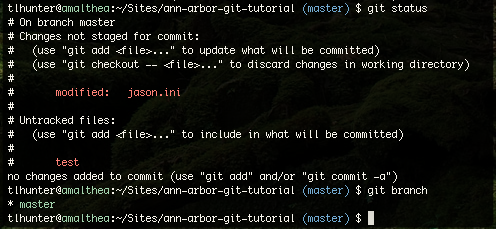
Put the following code in your ~/.gitconfig (global git configuration) file.
[color]
  diff = auto
  status = auto
  branch = auto
[format]
  pretty = "Commit:  %C(yellow)%H%nAuthor:  %C(green)%aN <%aE>%nDate:    (%C(red)%ar%Creset) %ai%nSubject: %s%n%n%b"
This will give you colored output like the following (notice the red modified file, red untracked file [added files will be green], and the current branch being green [non-current branches will be white]):
Shortcut Terminal Commands:

Put the following lines into your ~/.bash_profile file, then you can use the two or three character shortcuts to make your life a lot easier.
alias ga='git add'
alias gp='git push'
alias gl='git log'
alias gs='git status'
alias gd='git diff'
alias gm='git commit -m'
alias gma='git commit -am'
alias gb='git branch'
alias gc='git checkout'
alias gra='git remote add'
alias grr='git remote rm'
alias gpu='git pull'
alias gcl='git clone'
Terminal Autocompletion:

Download this script, and put it in the root of your home directory:
Now that the script is there, you will need to execute it each time your bash session starts. Put the following code in your ~/.bash_profile file:
if [ -f ~/.git-completion.bash ]; then
    . ~/.git-completion.bash
fi
Also, if you are using the short codes above, you will need to add the following two lines to your ~/.bash_profile as well so that the shortcut commands also get auto completed:
complete -o default -o nospace -F _git_branch gb
complete -o default -o nospace -F _git_checkout gc
Bash Prompt Branch Name:

The following code requires the git-completion.bash script be setup properly (as defined in the above section). Once you have it setup, you can add the following code to your ~/.bash_profile file. It will change your bash prompt to this new. If you are inside of a git repository, it will display the name of the branch. If you aren't in a git repository, it will just display the path. You may want to tweak it to be a little more familiar; it is based on a standard old linux prompt, and may look out of place depending on your distro or if you are using OS X.
green=$(tput setaf 2)
blue=$(tput setaf 4)
bold=$(tput bold)
red=$(tput setaf 1)
reset=$(tput sgr0)
PS1='\u@\[$green\]\h\[$reset\]:\w\[$blue\]$(__git_ps1)\[$reset\] \$ '

Thomas has contributed to dozens of enterprise Node.js services and has worked for a company dedicated to securing Node.js. He has spoken at several conferences on Node.js and JavaScript and is an O'Reilly published author.
